














































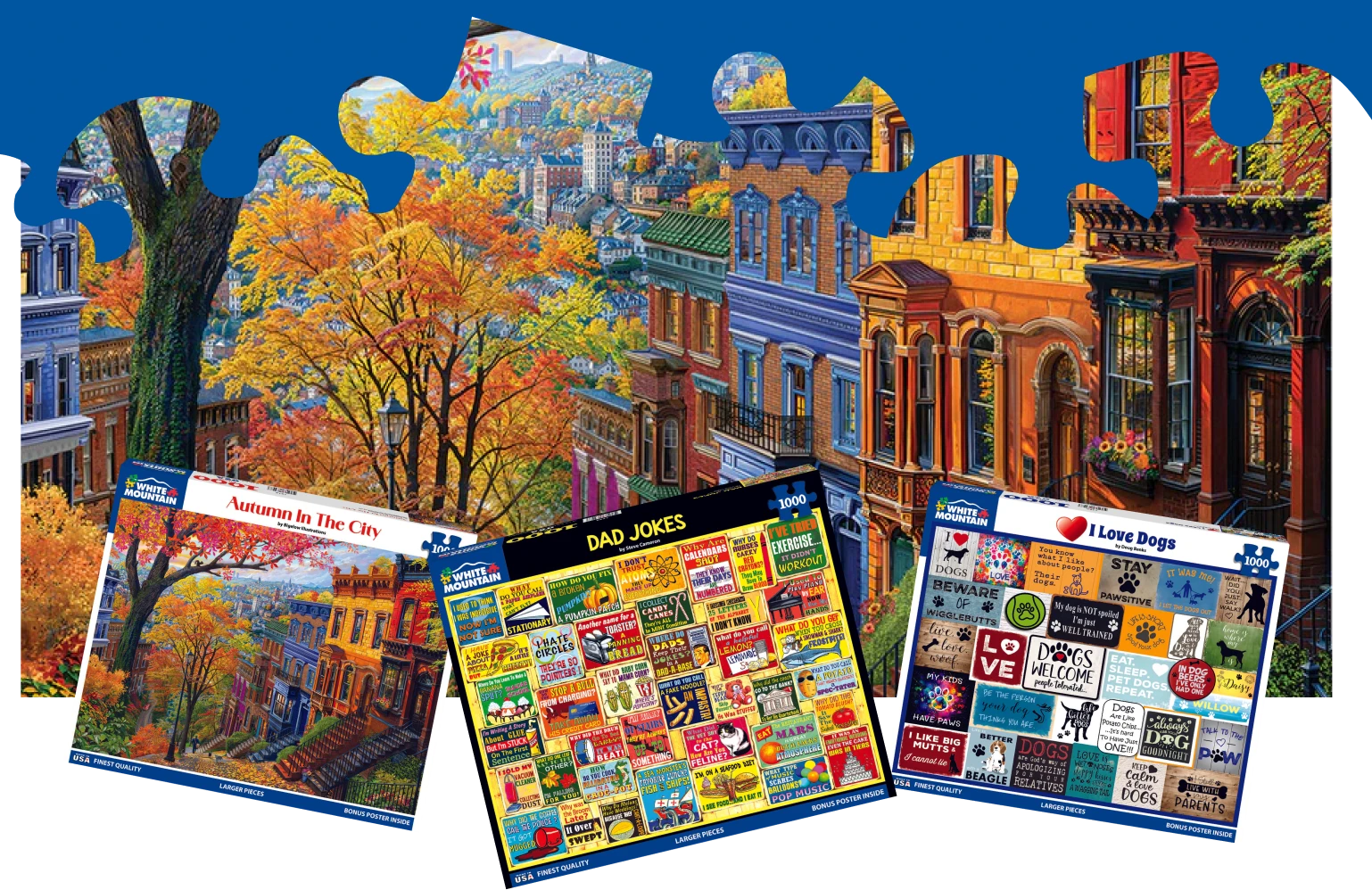
AMERICA'S FAVORITE JIGSAW PUZZLES
STOCK UP ON NEW PUZZLES, BEST SELLERS & SO MUCH MORE!
PERFECT FOR ALL AGES AND ALL LEVELS OF DIFFICULTY
SHOP NEW PUZZLES-
FREE SHIPPING OVER $75

-
OVER 1 MILLION HAPPY CUSTOMERS

-
Happiness Guarantee






AMERICA'S FAVORITE JIGSAW PUZZLES
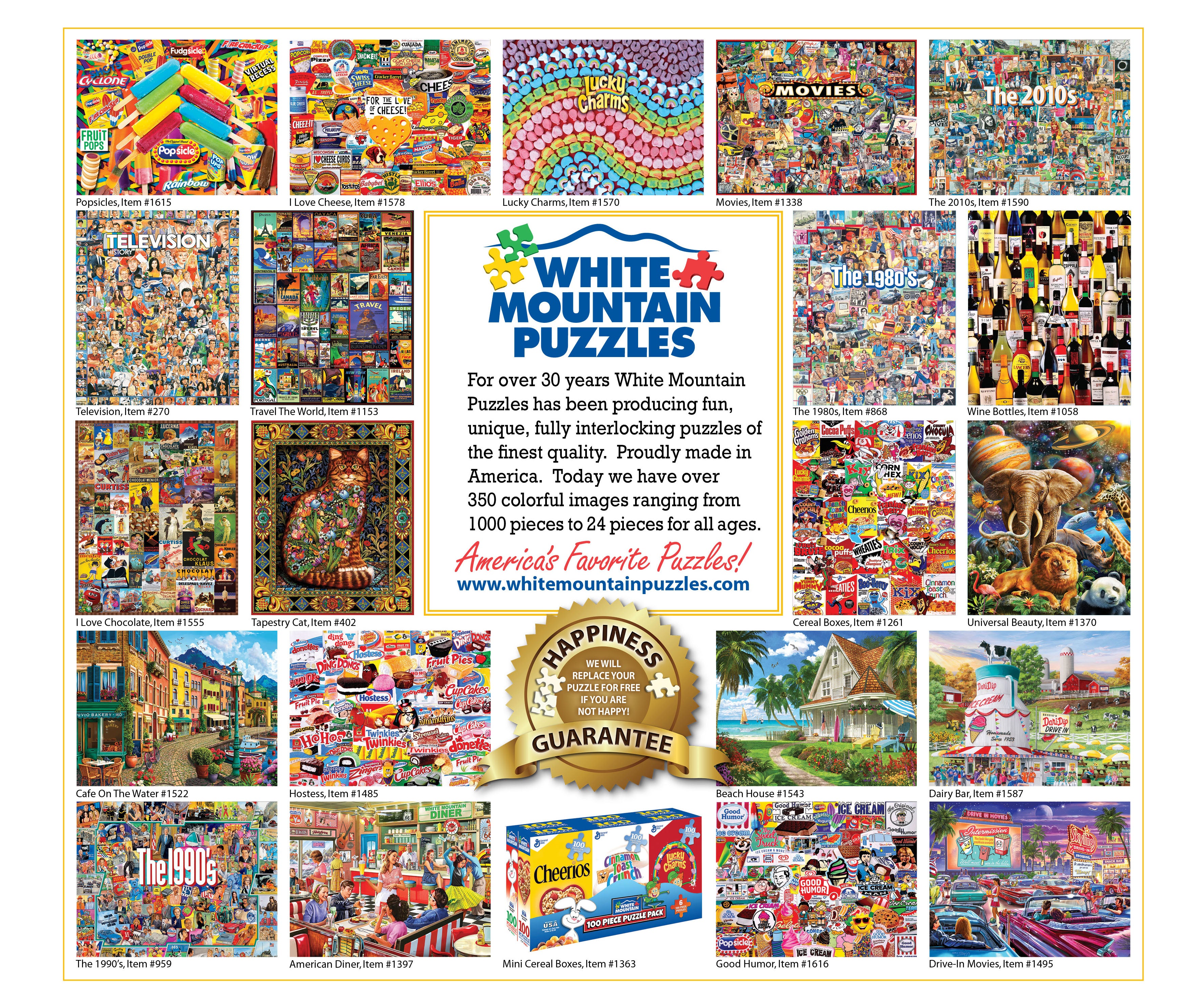
For over 30 years, White Mountain Puzzles has crafted the highest quality puzzles for the entire family to enjoy. We offer colorful jigsaw puzzles from recognized artists, available for all ages and all levels of difficulty.




Rave Reviews!
Read over 40,000 reviews from happy customers.
Remember... with our Happiness Guarantee, you can always return any puzzle for any reason.


Train Your Brain
Jigsaw Puzzles are more than just fun. They offer some amazing health benefits as well. They can help increase your cognitive abilities and may even help stave off Alzheimer’s disease. So, when you spill the pieces of a White Mountain puzzle onto the table, you’re not only creating a beautiful artistically rendered image, you could be turning yourself into a picture of health.

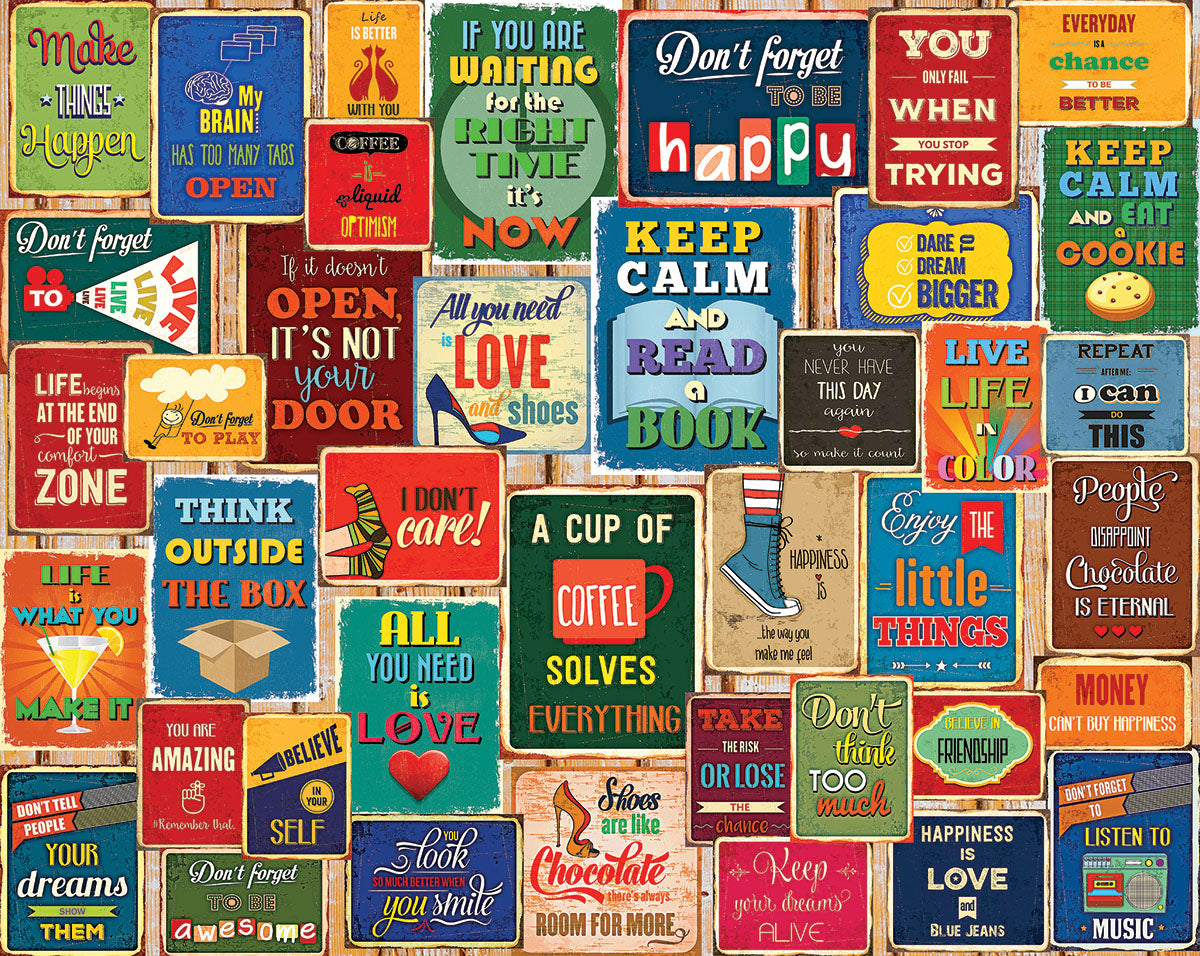
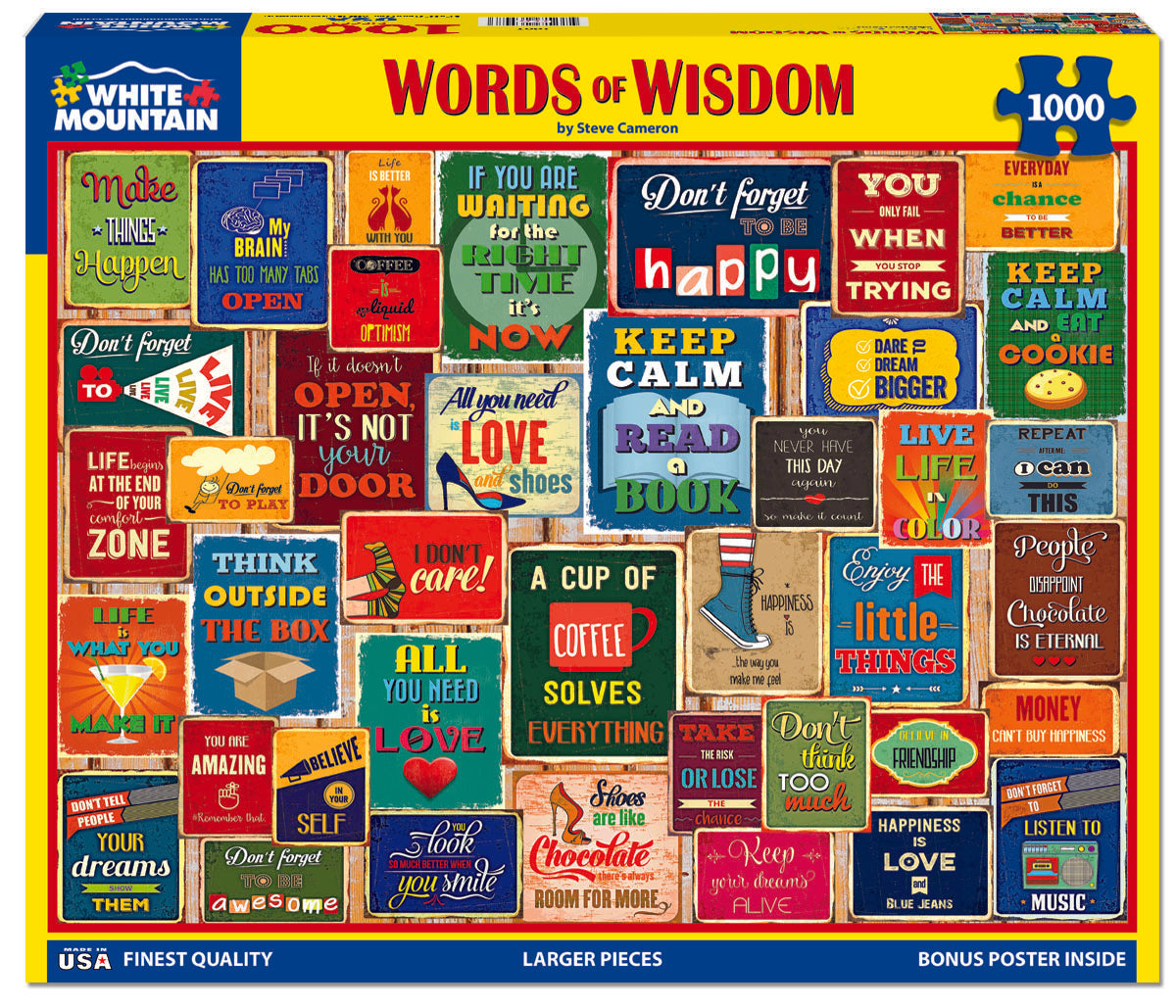

1607 Words of Wisdom. Life is what you make it so keep calm and read a book, and don't forget to be awesome. These and other pearls of wisdom are lettered on a 1,000 piece puzzle by artist Steve Cameron. Finished size 24" x 30".

Featured Collection
Pop Culture Puzzles
The Movies is one of more than 50 fun Pop Culture puzzles featured in our Pop Culture Puzzles Collection.
1000 piece puzzle with a finished size of 24” x 30”.


Visit Our Store!
18 Black Mountain Rd.
Jackson, NH 03846
STORE HOURS:
Our store is open Monday through Saturday 9:30 am to 4:30 pm, And Sundays 10:30 am to 4:30 pm.
Our Customer Support (phone) is available to help with questions 24/7.
Questions? 1-800-548-8009


Join the Club!
Sign up to receive Free Special Offers, Discounts, Our Printed Catalog,
and Customer Surveys so you can tell us what puzzle to print next!